Manage Focus Area Detections
 |
This functionality may not be regulatory cleared, released or licensed for sale in all markets. |
| Where? | |||||||
 |
DTX Studio Clinic | Intraoral RX workspace | |||||
When the Focus Area Detection is completed, double-click an image with a Focus Area Detection icon.
Focus areas are visualized on the intraoral images with a blue rectangle.
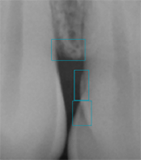
Hover over the focus area to display the finding with its specific color, tooth number (if known), and the type of potential dental finding detected.
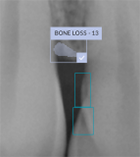
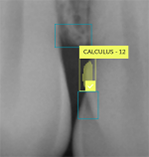
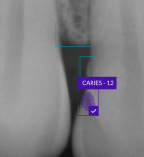
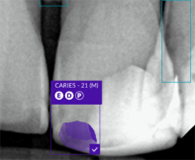
For caries, the location will be indicated as follows:
D: distal
M: mesial
O: occlusal
B: buccal.
The depth of the caries will be shown as:
E: enamel
D: dentin
P: pulp chamber.
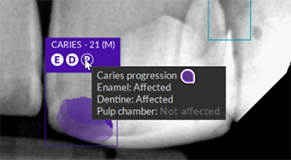
When hovering over the corresponding icons, the stage of caries progression is revealed as well as the layers that are affected.
Add or Remove a Dental Finding
After your analysis, choose either to:
Accept the potential dental finding by left-clicking the focus area.
Reject it by right-clicking the focus area.
Accept all the focus areas and turn them into findings, by clicking Focus areas, and then Approve all on the toolbar.
Reject all the focus areas, by clicking Focus areas, and then Ignore all on the toolbar.
Start the focus area detection all over by clicking Focus areas, and then Run detection on the toolbar.
If you choose to accept it, the focus area changes to yellow and is automatically converted into a diagnostic finding.
Findings are displayed in the intraoral RX layout overview and in the enlarged image. Manage findings in the Findings smart panel of the enlarged image.
Hide or show the focus area annotations using the visibility icons on the Visibility smart panel. To hide all the findings and focus areas on the images in the workspace, click the Show / hide findings switch to off ( ). To reveal them again, click the switch back on (
 ).
).
When a recurring focus area is detected across multiple intraoral X-ray images, a notification will appear on the screen. Click Approve All to accept this focus area on all affected images.
Note
Turn to the Tools preferences in the Clinic module to set which focus areas will be shown by default, and the color in which they will be shown.