Diagnostic Findings
| Where? | |||||||
 |
DTX Studio Clinic | Findings smart panel | |||||
Add dental pathologies, jaw problems or other diagnostic findings to the diagnosis.
Add a Diagnostic Finding
To add a predefined diagnostic finding, go to the Findings smart panel.
In the Add finding field, select or enter a finding. To narrow down the results, enter (a part of) the name. To add a diagnostic finding that is not in the list, enter the custom name in the search field and press Enter.
The finding is added to the list.
Notes
If the finding is added in the Tooth workspace, the finding is added to the specific tooth.
If the finding is created in another workspace, click the tooth number placeholder and type the tooth number to assign the finding to a specific tooth.
Hover over the finding, then click the right arrow to display its details. Optionally, add more information:
Select the correct Tooth number for the finding.
Note
When exporting a Findings report, only findings with an assigned tooth number are included. This applies to both manually added findings and approved focus areas.
Select the Status of the finding.
Note
In the Tooth workspace, the status is visually indicated on the tooth chart as well.
To add a note, select the the finding on the smart panel and type the note in the Comment text box.
To capture a screenshot, select the finding on the smart panel and click Screenshot.
To hide all the findings and focus areas on the displayed images, on the Findings smart panel click the Show / hide findings switch on ( ). To reveal them again, click the switch off (
 ). Alternatively, use the shortcut [Ctrl+F] or [Cmd+F].
Non-pathologies that were detected with Focus Area Detection are also listed on the Findings smart panel. By default, the non-pathologies are not displayed on the image. To reveal a non-pathology on the image, hover over the non-pathology in the smart panel. To display non-pathologies on the image, use the eye icons in the Visibility smart panel.
Note
This functionality may not be regulatory cleared, released or licensed for sale in all markets.
Duplicate findings occurring on multiple images are grouped in the Visibility smart panel. This ensures that there is one tile per finding for the same type of finding at the same location on a specific tooth number. Additionally, it allows you to display all images for a specific finding.
Notes
To add a note on patient level, go to the diagnosis in the patient menu.
When using the Spotlight feature, the findings or focus areas will not be displayed within the spotlighted area.
Remove a Diagnostic Finding
To remove the finding:
Hover over the finding on the smart panel, then click the right arrow icon to display its details.
Click More options … and select Delete.
Tooth Chart
In the tooth workspace and endo workspace, a tooth chart is shown above the smart panel tab.
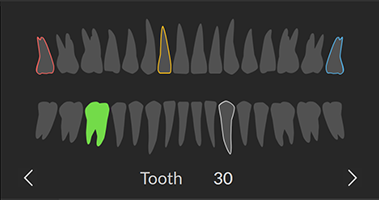
The active tooth, for which the data is shown in the workspace, is highlighted in green.
Select another tooth by clicking a tooth on the tooth chart.
Press the arrow keys ( or
or  ) to go to the previous tooth or next tooth. Alternatively, click the arrow icons (
 or
or  ).
).
A tooth with at least one finding has a colored outline. The color depends on the treatment status of the finding.
To define the treatment status of a finding, select one the following statuses:
| Status | Description | Color |
| Condition | The finding is not critical, but may need to be watched to track its evolution over time. | Gray |
| Treatment plan | The finding needs to be treated. | Red |
| Follow-up | The finding is discovered at an early stage and should be watched. | Yellow |
| Completed | The treatment for this finding has been completed. | Blue |
Note
If the patient is younger than eight years old, the navigation tooth chart for primary teeth is shown. To make changes to the tooth chart (exchanging primary teeth with permanent teeth, indicating which teeth are missing, etc.), go to the diagnosis in the patient menu.
Bookmark
When you add a finding, the current workspace configuration is saved as a bookmark for this finding.
The bookmark allows you to navigate back to the workspace where the tooth pathology can be clearly seen.
To navigate back to the bookmark, hover over the finding in the smart panel, and click Show Bookmark. Alternatively, click More options … and select Show Bookmark.
To replace the bookmarked configuration with the current configuration, go to the finding details by hovering over the finding in the smart panel and clicking the appearing arrow, then click More options … and select Update Bookmark.