Implant Workspace
| Menu path | Shortcut | ||||||
 |
DTX Studio Clinic | workspace bar | Implant | [F9] | |||
The Implant workspace includes a panoramic view, a 3D viewer, and cross-section views that are automatically snapped to an implant when one is present.
Note
This workspace is only available if a 3D (CB)CT scan is added to the diagnosis.
To rotate perpendicular or parallel reslices, drag the index line or use the sliders.
To move up or down in the horizontal reslices, drag the blue index line or use the slider.
To add a viewer such as cross-sections to the workspace, open the Layout smart panel and select the corresponding tile. For more information about customizing the workspace, see: SmartLayout.
Click on the Implant plan smart panel to show planned implants and anchor pins with tooth number and specifications. If necessary, adjust tooth numbers.
To duplicate an implant plan, on the Implant plan smart panel click More options … and select Duplicate.
Note
Make sure to update a prepared surgical template after modifying an implant or anchor pin. Hover over a tile on the Implant plan smart panel and select Update.
To show or hide the implant axes, use the visibility icons on the Visibility smart panel.
Implant Chart
In the Implant workspace, an implant chart is displayed at the top of the smart panel tab. This chart enables easy navigation through the planned implants using the arrow keys on your keyboard.
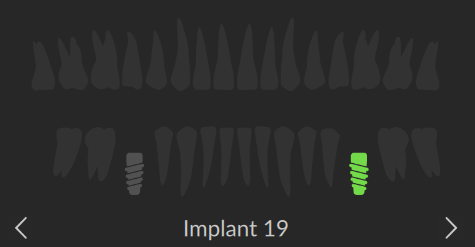
The active implant, for which the data is shown in the workspace, is highlighted in green.
Select another implant by clicking an implant on the chart.
Press the left or right arrow key on your keyboard ( or
or  ) to go to the previous or next implant. Alternatively, click the arrow icons on your screen (
 or
or  ) .
) .