Image Filters
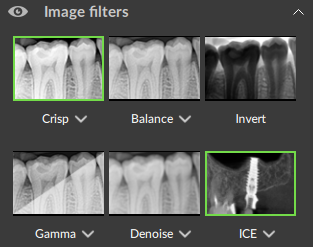
Multiple filters can be selected. On the smart panel, select the Viewer tab.
Note
To set default filters or custom gamma filter values for a certain image type, see Image settings.
To apply filters:
In the Image Filters group, click the filter(s) to be applied to the image data.
To hide all applied filters at once in order to view the original image, click the eye icon next to Image filters.
Note
Additionally, use the shortcut [E] to apply or undo the Crisp filter.
Click the drop-down arrow below the image filter and use the slider to set the filter percentage, if needed.
Click outside the menu to hide the filter percentage slider.
Notes
The Implant Contrast Enhancement (ICE) filter is only available in a reslice viewer for a DICOM that has been acquired with an OP 3D, OP 3D LX or OP 3D EX.
The Anatomy filter is available for intraoral RX images. It highlights the enamel, dentin and pulp chamber of the tooth in different colors for easy identification. Non-pathologies are also highlighted. You can hide these by using the eye icons in the Visibility smart panel.