Auto Endo
 |
This functionality may not be regulatory cleared, released or licensed for sale in all markets. |
| Where? | |||||||
 |
DTX Studio Clinic | Endo workspace | Start > |  |
Auto endo | ||
Automatically Detect and Calculate Root Canal Trajectories
Note
This feature requires a subscription to the Endo module. With a subscription, the software automatically detects root canal trajectories and calculates their measurements and maximum curvature. Without a subscription, you can open the Endo workspace, but Auto Endo is disabled.
To automatically detect and calculate the initial trajectory for each root:
In the Endo workspace, Root canal viewers are displayed for the selected tooth, each representing an expected canal. On one of these viewers, click Set up endo workspace for tooth #. Alternatively, on the Start toolbar, click Auto endo.
The software runs MagicAssist, which analyzes the selected tooth. MagicAssist automatically detects and segments both the tooth structure and its root canals.
Note
A warning is displayed when a low-resolution scan is used (voxel size greater than 0.2 mm).
Initial trajectories for file procedures are calculated for each detected root canal. Based on the detected root canal trajectories, a new root canal viewer is displayed with the canal centered in the viewer. Because the trajectory follows the natural path of the canal, the resulting reslice may appear curved when you rotate the visualization and inspect it in the 3D viewer.
Key measurements, including the total length and maximum curvature, are automatically calculated and displayed. A movable disk is provided to adjust the access depth and canal length.
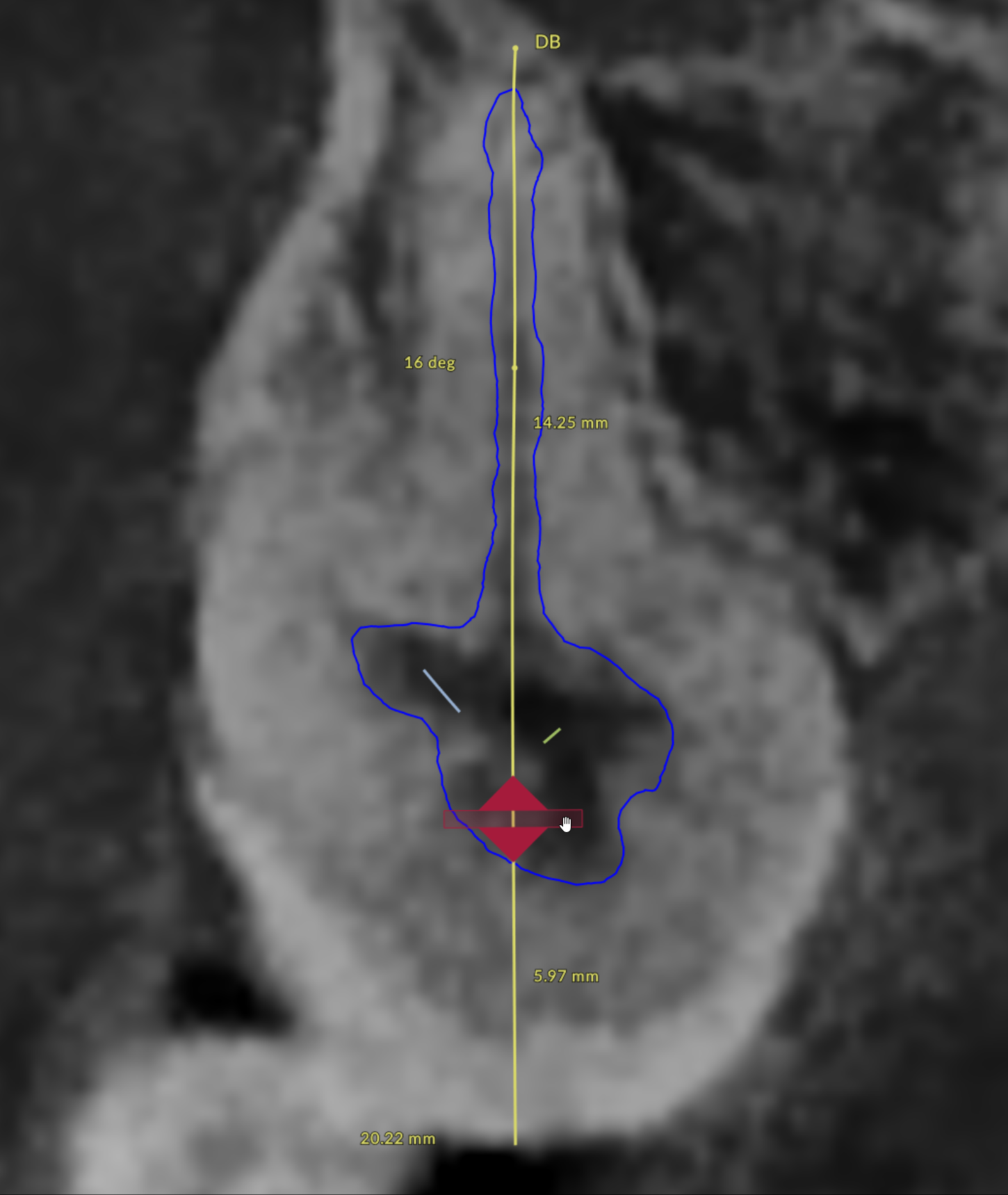
When the calculation is complete:
The root canal is displayed as a volume in the 3D viewer and as a contour in the reslice viewers.
The trajectories for each root are displayed.
The apex of each trajectory is displayed.
To calculate root canals for another tooth:
Select the tooth in the tooth chart on the smart panel.
Repeat the procedure.
Teeth with detected root canals are indicated in the tooth chart with a tooth icon showing canals.
Review and Adjust the Root Canals
In the 3D viewer, in the bottom-left corner, use:
 |
Single tooth mask | to display the isolated tooth |
 |
Multi tooth mask | to display the tooth together with adjacent teeth |
The root canal reslices are curved along the root canal trajectories, allowing you to rotate around each canal by using the slider of the root canal viewer.
Each detected root canal is automatically named based on root morphology. You can rename root canals in the Findings smart panel.
To view root canal details, in the Findings smart panel, hover over a root canal, and then click the arrow.
For each root canal, the following details are available:
Name: To change the name, select the desired option from the list.
Maximum curvature: The curvature complexity is color-coded:
Green: 0 - 5% (minimal)
Yellow: 6 - 25% (moderate)
Orange: > 25% (high)
Total length
Access depth: Distance from the crown to the pulp chamber
Canal length: Distance from the pulp chamber to the apex
In a root canal viewer, drag the reference disc to adjust the access depth and canal length.
In the Visibility smart panel, use the eye icons to show or hide root canal objects.
Edit Root Canal Trajectories
To manually edit the canal trajectory:
On the Findings smart panel, hover over the root canal you want to adjust, click on the right arrow to open the details, and then click Edit trajectory.
Trajectory editing is also available via the right-click menu in the viewer.
Drag the control points to adjust the canal path.
Measurements are automatically recalculated and updated in the Findings smart panel.
Note
A Comment can be added for this root canal on the Findings smart panel.
Right-click to finish.
Add Root Canals Manually
Use the manual wizard to define a new root canal:
On the Findings smart panel, click Add root canal.
Indicate the requested points.
Drag the control points to adjust the canal path.
Click Done.
A new curved reslice is generated and shown in a root canal viewer.
Generate Endo Report
On the Finalize toolbar, click Create report to generate a dedicated Endo report.