Adjust Patient Orientation
| Where? | |||||||
 |
DTX Studio Clinic | 3D tools > |  |
Set up 3D X-ray > |  |
Adjust patient orientation | |
To edit the orientation of the patient model:
Drag the model until it is correctly aligned with the reference lines. The 3D patient model can be oriented in the preferred position by translating and rotating the model in the 3D viewers. Click the pan icon or the rotation icon or press the Tab key to switch between rotation and translation mode. The selected mode appears in green. Then translate or rotate the 3D patient model.
 |
Translate the model. |
 |
Rotate the model. |
Click Done.
Translate the Model
Make sure the Translation mode is activated. When in translation mode, the cursor has the shape of a cross ( ).
).
Click on the patient model and drag it to the correct position.
| Movement | Where | Action |
| Move sideways | In the Frontal viewer | Click and hold while moving the mouse left and right. |
| Move forward and back | In the Lateral viewer | Click and hold while moving the mouse left and right. |
| Move up and down | In the Frontal or Lateral viewer | Click and move the mouse up and down. |
Rotate the Model
Make sure the Rotation mode is activated. When in rotation mode, the cursor has the shape of a rotating circle. Each zone has a specific mouse cursor:
 |
Yaw. |
 |
Roll or Pitch. |
| Movement | Where | Action | |
| Yaw |  |
In the Frontal or Lateral viewer | Move the mouse left and right on the model. |
| Roll | 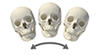 |
In the Frontal viewer | Move the mouse outside the model. |
| Pitch | 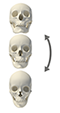 |
In the Lateral viewer |