Zoom and Pan on DICOM Files
Zoom in on data and pan the view to focus on a specific point.
Zoom Box
To zoom in on a specific area in a 2D viewer:
Click Zoom Box  in the upper-right corner of the viewer.
The mouse pointer changes into the zoom box cursor  .
.
Click the view, hold down the mouse button and drag over the view. A red marquee indicates the selected zone to be magnified.
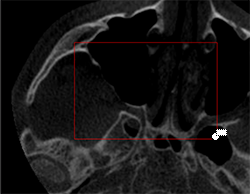
Release the mouse button. The selected zone is displayed within the viewer at the highest possible magnification.
Reset Zoom
When the model no longer fits on the screen, return to the original size or include the whole model in the viewer in a single click.
Click Reset zoom  in the upper-right corner of the viewer.
Both the window size and the zoom level are scaled to fit the model to the available viewer space.
Pan the 2D View
When the image becomes too large to be completely shown in the view, you can drag or 'pan' the image (both horizontally and vertically) to focus on a specific part of the image.
Click Pan  in the upper-right corner of the viewer.
Click and hold the left mouse button and drag in the desired direction. Drag left or right to move the model horizontally, or up and down to move it vertically.