Export for 3D Viewer
Export the 3D X-ray to a CD or a USB stick to share it with recipients who do not have DTX Studio Clinic.
| Where? | |||||||
 |
DTX Studio Home |  |
More > |  |
Export for 3D viewer | ||
To export the 3D X-ray:
Select the 3D X-ray images to export. This can be done by clicking the images. Tiles with a colored border will be exported. Click the following options:
| Select all | to select all the data in the list. |
| Deselect all | to deselect all the data. |
 |
to view the data in grid view. |
 |
to view the data in list view. |
Click Browse and go to the desired export location. Click Select folder. Alternatively, enter the file path in the Export directory field.
Select Anonymize patient to not include the patient name, date of birth and patient ID.
Click Export for 3D viewer.
A confirmation dialog is shown. Click Show in file browser.
Double-click the .html file to open DTX Studio for Web. Then drag and drop the .dcm file on the opened viewer to view the 3D X-ray. The .html and .dcm files can easily be shared on a CD or USB stick.
Click Images details to view general patient details, DICOM and scanner details, as well as radiation dose.
On the 3D patient tab:
Adjust the brightness and contrast.
Maximize a viewer by using the maximize icon in the top-right corner of the viewer.
Rotate the 3D model by using the right-mouse button.
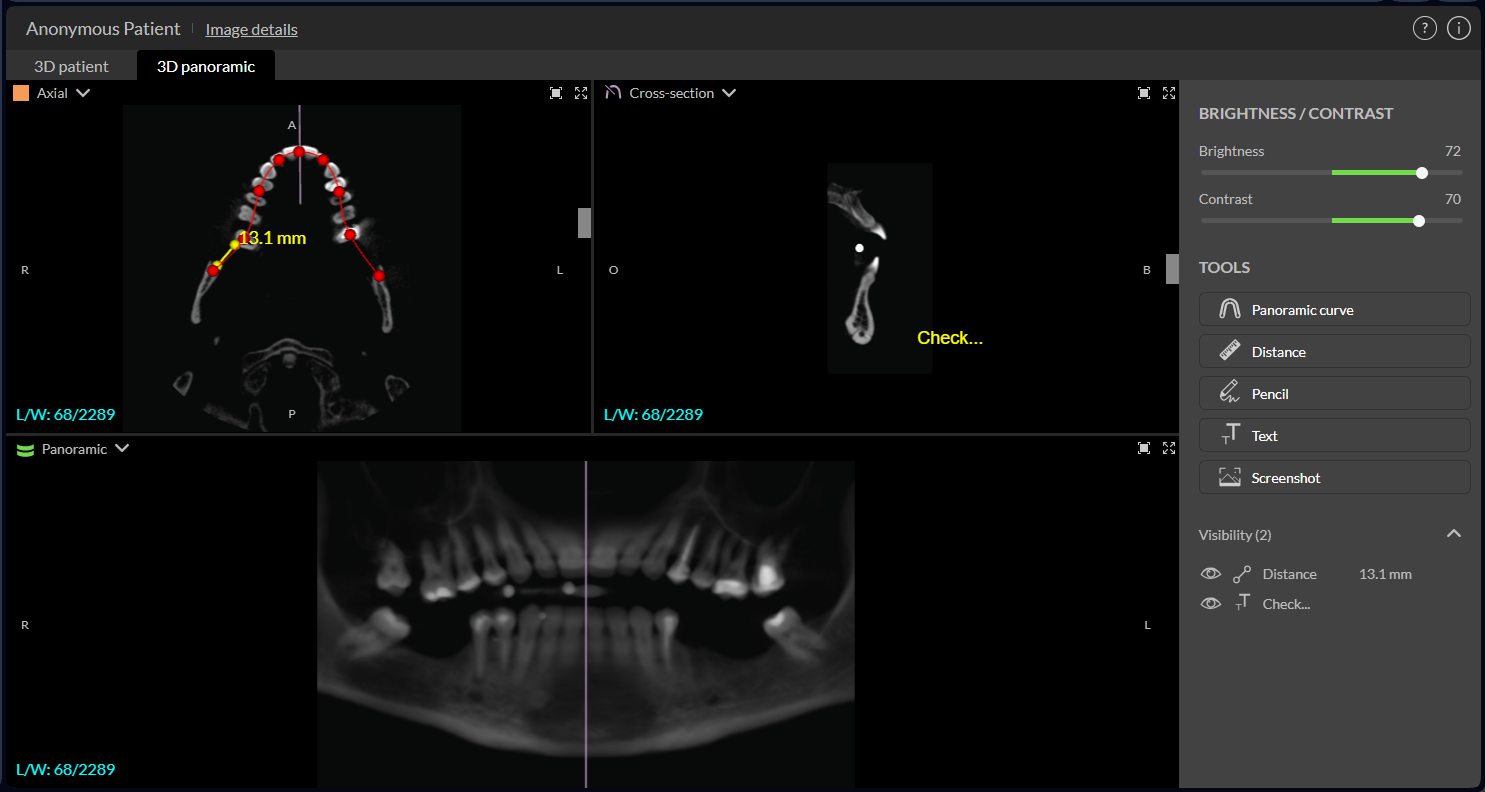
Add annotations, which can be hidden using the eye icon on the right panel.
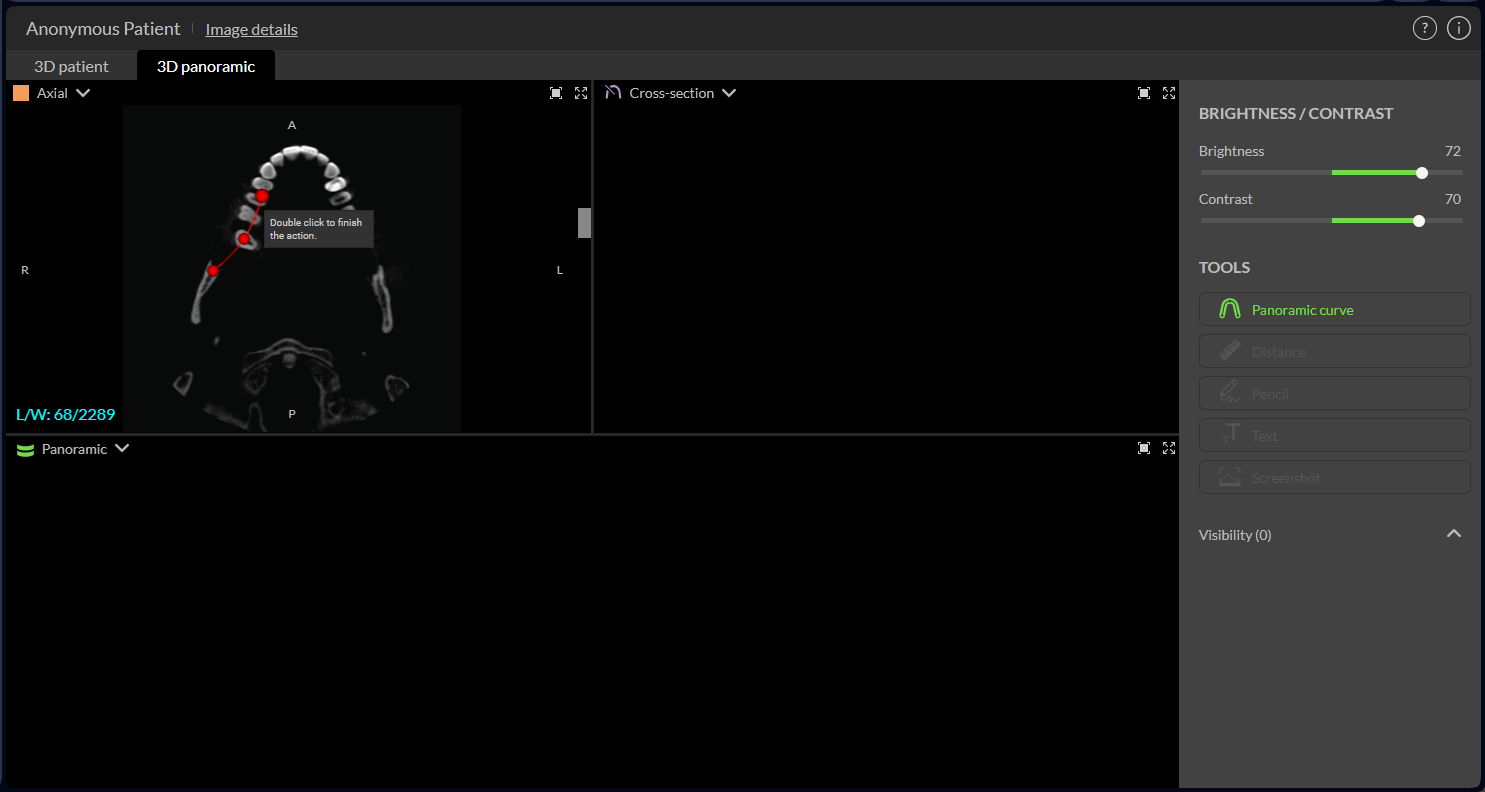
On the 3D panoramic tab:
Indicate the panoramic curve.
Add annotations, which can be hidden using the eye icon on the right panel.
Note
The panoramic curve is not added to the CD or USB stick.