Explore the Clinic Module
The image below shows the different components of the Clinic module interface:
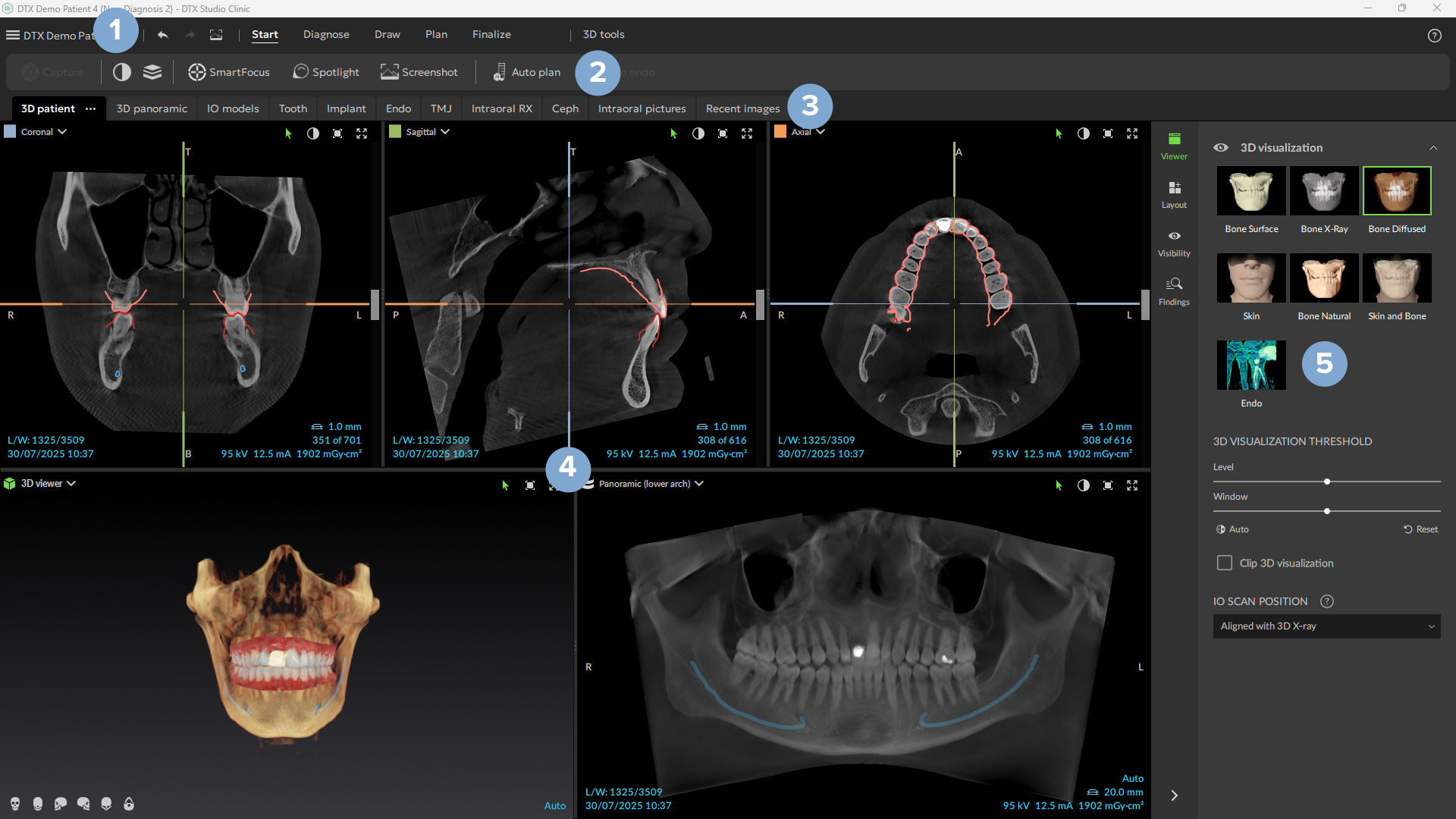
- Menu bar: patient menu, general actions (Undo / Redo / Screenshot), and toolbar tabs.
- Toolbar: tools to edit the scan data, annotate and diagnose, and plan implants.
- Workspace bar: switch between the available workspaces.
- Workspace: a set of SmartLayout viewers to display the patient image data.
- Smart panel: layout settings, tooth navigation, diagnostic findings, patient notes, object visibility settings and more.
Work with the Smart Panel
On the bottom right-hand side, click the left arrow ( ) to expand the smart panel. Click the right arrow (
 ) to collapse the smart panel.
On the smart panel, following information or actions can be found.
| Tab | Allows You to | |
 |
Viewer | Choose the rendering of the scanned patient model, image filters, brightness and contrast levels, and 3D clipping. |
 |
Layout | Add related images to the workspace. This tab is available for all the workspaces except for the Clinical pictures, Intraoral RX and TMJ workspaces. |
 |
Visibility | Set the visibility of objects, annotations, measurements, and focus areas (focus areas are only shown on the smart panel for a maximized intraoral X-ray). Changes are applied on the image in the active viewer. |
 |
Findings | View and add diagnostic findings. |
 |
Cameras | Acquire intraoral images directly into the workspace. The tab is available when an intraoral camera is connected to your computer via USB, available for all the workspaces except for the Clinical pictures, intraoral RX and TMJ workspaces. |
 |
Implant plan | To adjust implant, sleeve, abutment and anchor pin details. This tab is available when implants have been planned on the Implant workspace. |
 |
Adjust | To adjust the position of an intraoral scan, face scan, virtual tooth, or implant. This tab is available when an intraoral scan, face scan, virtual tooth, or implant has been selected in the scene. |