Endodontic Workspace
| Menu path | Shortcut | ||||||
 |
DTX Studio Clinic | workspace bar | Endo | [F4] | |||
To focus on a specific tooth for endodontic diagnostics and procedures, click Endo on the workspace bar. Alternatively, press [F4].
To visualize the tooth morphology, click the Endo 3D visualization on the Viewer smart panel.
Note
This workspace is available if a 3D X-ray is loaded.
The Root canal viewers and the 3D viewer are focused on a tooth of interest.
The Tooth cross-sections viewer is a cross-sectional viewer that shows several horizontal tooth cross-sections.
Once the root morphology is automatically detected (see Auto Endo) or manually defined (see Endo Trajectory), the root canals are visualized.
Endo Chart
In the Endo workspace, an endo chart is displayed at the top of the smart panel tab. Teeth for which root canal trajectories have been defined are marked with a grey icon featuring black roots.
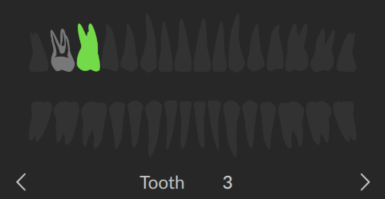
The active tooth, for which the data is shown in the workspace, is highlighted in green.
Select another tooth by clicking a tooth on the chart.
Press the left or right arrow key on your keyboard ( or
or  ) to go to the previous or next tooth. Alternatively, click the arrow icons on your screen (
 or
or  ) .
) .